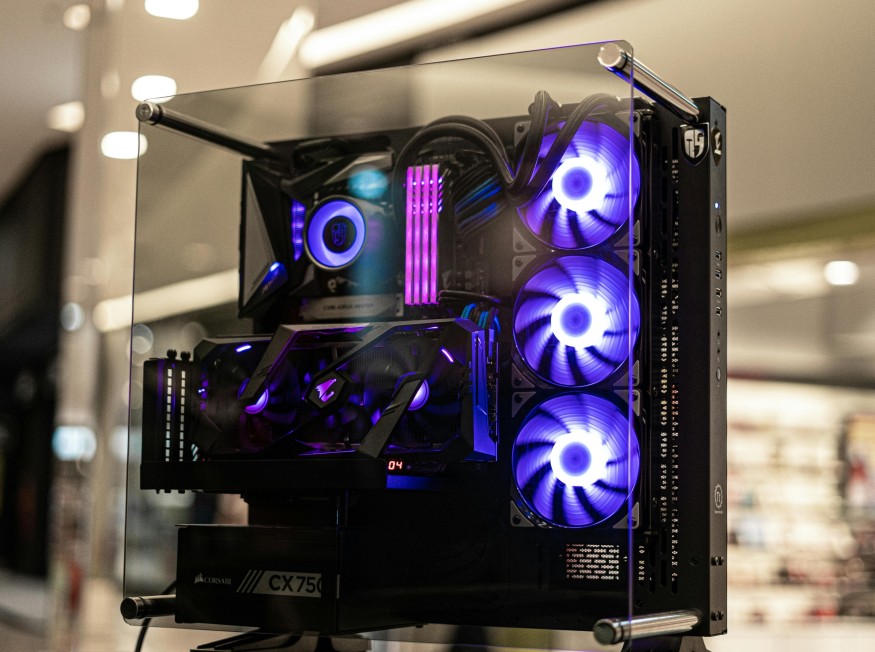
Competitive PC gamers chase smooth, responsive gameplay through high frame rates. Tweaking increased fps gaming pc setups gives that crucial edge in fast-paced titles like "CS2", "Valorant", and "Fortnite".
Why High FPS Matters in Competitive Play
High FPS keeps pace with modern monitors refreshing at 144Hz, 240Hz, or even 360Hz. Players notice the difference in aiming precision and quick flicks—stable 200+ frames cut input lag to near zero, letting reactions happen in milliseconds.
Dropping below 100 FPS brings stuttering that throws off tracking. Pros push for 300+ on high-end rigs to stay ahead, especially in clutch 1v1s where every frame counts. Lower frames amplify monitor response times, making movement feel sluggish.
Frame time consistency matters more than peak FPS. Even spikes above 300 feel choppy if dips hit 100. Tools like MSI Afterburner reveal these inconsistencies, guiding targeted fixes. Guides from Blur Busters forums dive deep into this.
Core Gaming Performance Settings for Maximum FPS
Start with in-game graphics menus—these offer the biggest gaming performance settings wins. Drop resolution to 1920x1080 or stretched 4:3 ratios like 1280x960. This sharpens enemy outlines while boosting frames dramatically.
Shadows eat GPU cycles with little competitive value—set them to low or off. Anti-aliasing smooths edges but tanks FPS; turn it off or use FXAA on low. Textures at medium strike a visibility balance without overloading VRAM.
Post-processing, motion blur, and depth of field add cinematic flair but blur motion. Disable them entirely. V-Sync caps frames to your monitor's refresh rate, adding lag—keep it off and use a frame limiter instead.
Best fps settings pc tweaks include:
- Resolution: 1920x1080 or lower (Very High FPS gain)
- Shadows: Off/Low (Very High FPS gain)
- Anti-Aliasing: Off (High FPS gain)
- Textures: Medium (Medium FPS gain)
- Effects: Low (High FPS gain)
- V-Sync: Off (High FPS gain)
- Motion Blur: Off (Medium FPS gain)
View distance on high helps spot distant foes, but cap everything else low. Test changes with in-game benchmarks to confirm 100+ FPS stability. HP's tech takes cover resolution tricks well.
Windows and Hardware Tweaks to Increase FPS Gaming PC
Windows hogs resources with updates and animations. Enable Game Mode in Settings > Gaming—it pauses background tasks, prioritizing your match. Pair it with the High Performance power plan from Control Panel > Power Options to stop CPU throttling during raids or ranked queues.
Task Manager's Details tab shows culprits like Chrome tabs or RGB software eating RAM. End them before launching. Disable startup apps in Task Manager's Startup tab for cleaner boots—fewer processes mean steadier frames.
Graphics drivers make or break performance. NVIDIA's GeForce Experience scans and updates automatically, often netting 15-20% FPS lifts from bug fixes alone. AMD and Intel users hit their apps for similar gains.
NVIDIA Control Panel under "Manage 3D Settings" sets global preferences: Low Latency Mode to Ultra reduces queue times, Power Management to "Prefer Maximum Performance," and Texture Filtering to High Performance. Apply per game for precision.
Monitor settings align everything—right-click desktop > Display Settings > Advanced > choose 144Hz or max. Exclusive fullscreen avoids Windows compositor overhead. Cap FPS 3-5 below refresh (e.g., 141 for 144Hz) with RTSS or in-game limiters to kill tearing without V-Sync lag.
Overclocks push hardware further. MSI Afterburner raises core clock by +100MHz and memory by +500MHz incrementally—watch temps stay under 80°C with a good cooler. Resizable BAR in BIOS (enabled on RTX 30/40 series) speeds VRAM access for 5-10% extras. Lenovo's knowledge base has solid power plan advice.
Game-Specific Best FPS Settings PC and Monitoring
"CS2" pros run shadows off, shaders medium, and multicore rendering enabled—aim for 300+ FPS on mid-range GPUs. "Valorant" mirrors this: effects low, bloom off, distortion zero. Both benefit from stretched res for bigger hitboxes visually.
"Fortnite" demands high view distance to scout builds, but foliage and shadows are low—disable ray tracing and nanite for 200+ frames. "Warzone" lowers particles, cache shadows off, and uses DLSS Quality for balancing speed and detail.
Upscalers shine here: NVIDIA DLSS 3 or AMD FSR 3 multiply frames intelligently in supported games, hitting 300+ without native res drops. YouTube breakdowns like max FPS settings videos break down per-game configs.
Track progress with overlays. MSI Afterburner's RivaTuner shows real-time FPS, frame times, CPU/GPU usage, and temps—1% lows above 100ms signal bottlenecks. CapFrameX captures sessions for replay analysis.
RAM speeds matter too—enable XMP in BIOS for DDR4/5 at rated clocks. NVMe SSDs cut load stutters versus HDDs. Clean dust from fans yearly to sustain clocks. Driver Easy shares effective background app tips.
Maximize Your FPS Gains Long-Term
Regular driver updates and benchmark tests keep increasing fps gaming pc peaks sharp. Experiment per title, as "Valorant"'s engine differs from Unreal-based "Fortnite". Competitive edges compound—combine low settings with driver tweaks for 50-100% uplifts on stock rigs. Console Killer's competitive guide nails game-specific tweaks. AVG outlines basic rig boosts nicely.
Frequently Asked Questions
1. What are the best FPS settings for competitive PC games?
Lower resolution to 1080p or stretched, shadows off, anti-aliasing disabled, textures medium, and V-Sync off—these deliver the highest frames while keeping visibility sharp in titles like "CS2" and "Valorant".
2. How can I increase FPS on my gaming PC without buying new hardware?
Update graphics drivers, enable Windows Game Mode and high-performance power plan, close background apps, and tweak in-game gaming performance settings like disabling motion blur and effects for quick 20-50% gains.
3. Does resolution affect FPS the most?
Yes, dropping from 1440p to 1080p often doubles FPS. Stretched resolutions (e.g., 4:3) further boost increase fps gaming pc by reducing pixel load while enlarging enemy models visually.